Create Same Drop Shadow on Text Corel Draw
The implementation of technology in our lives has had a positive impact on our development. It used to be very difficult to accomplish tasks that we do regularly today.
Communication was very slow, the access to information was limited . The same thing happened with photographs and even more so when it came to editing them. Since this required turning to a professional in the field and telling the truth, the process could be a bit slow.
Fortunately, with the evolution of technology, that has changed. Manage to develop image editing programs that offer professional work and wonderful. One of them is the famous Corel Draw , one of the best in terms of editing, that we can download and install easily.
How do I put and apply different shadow and silhouette effects to text using Corel Draw?
With just one click, we have access to all kinds of information, best of all in one place. Simply know how to use and manipulate the tools they offer us and thus be able to make good use of it for put custom effects on text and background , correct the blurry aspect of a photograph.
Without a doubt, one of the most recognized document editing programs today is Corel DRAW . It is very important to fully understand the functions and what can be created with this program. One of them is to apply different shadow and silhouette effects to a text .
Therefore, it was decided to prepare this article, where each of the steps for placing the shadow and silhouette in a certain text box will be taught.
Steps for creating the plan in a text box
The first step we need to do is open the Corel DRAW app, then we write the text to which we will apply the effect . We can change the style of the letter and the size it will have to our liking.
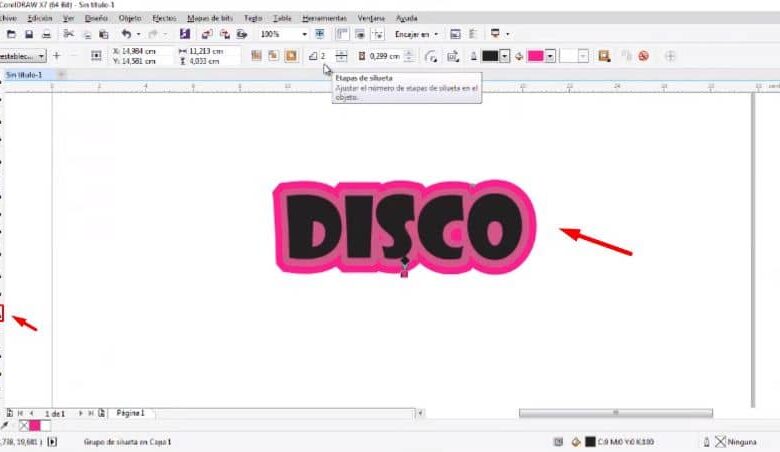
Now we have to create the silhouette that our text will have, for this we select the tool "Silhouette" located on the left side of the screen. Then we place the mouse over our text and leaving the left button pressed we drag outward.
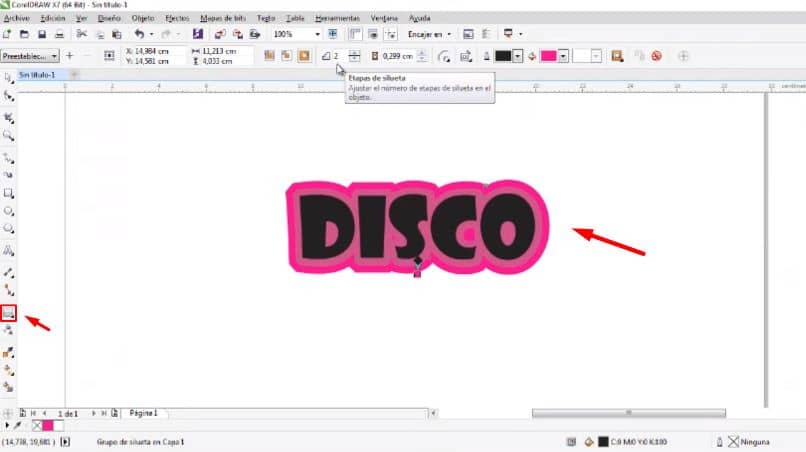
You can see how a silhouette will be created around our text, in the top bar we can configure this silhouette. Also change the distance it has from the text, the edges it has and color according to your preference.
The next step we need to do is to separate the object that we have, we have to select everything first. Then we click on the option "Object" located at the top of the screen and click on the option "Separate Silhouette Group" .
Steps to apply different shadow effects to text
By performing the previous steps we can separate the text from the silhouette, now we can start to apply the shadow effect . To apply this effect, the first step is to select the text we are creating.
We go to the bar on the left of the screen and let's select the shadow tool . We place our mouse over the text and holding down the left click, we drag outward.
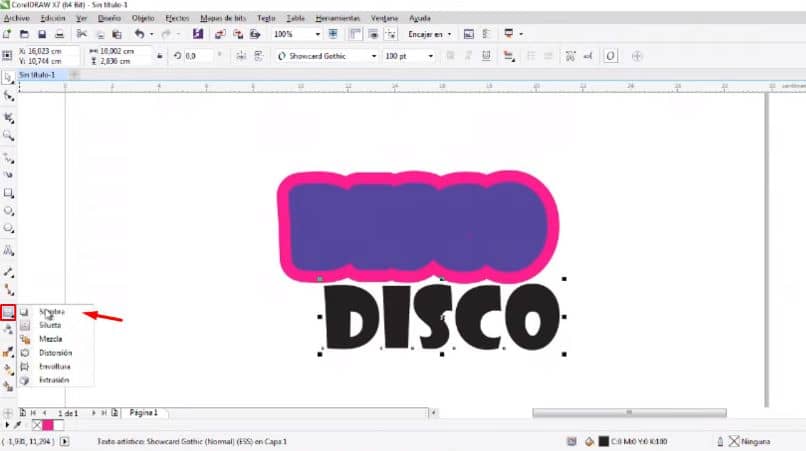
We will automatically observe how the shadow effect is created around our text, when finished we can start to configure it. At the top we see the options shadow configuration .
You can change the thickness of the shadow, the direction we want it to go, we can also choose between different shades of color. Then we drag the text above our silhouette and let's configure the shadow by making it more or less visible.
Finally, just add shadow to silhouette that we have created for this, we select the option "Pipette attribute located on the left. We need to turn off all transformation properties and options.
We will only leave the option "Shadow in the effects" activated , we now accept and select the created shadow, and then we paste it inside and outside the silhouette.
Finally, it would suffice to group objects .
Finally, we hope this article has helped you. However, we would like to know your opinion: Were you able to apply different shadow effects to text using the Corel Draw program? Leave us your answer in the comments .

Create Same Drop Shadow on Text Corel Draw
Source: https://www.informatique-mania.com/en/applications/comment-mettre-et-appliquer-differents-effets-dombre-et-de-silhouette-au-texte-avec-corel-draw/

Post a Comment for "Create Same Drop Shadow on Text Corel Draw"